Conditional Text
Similarly to other single-source elements, it might be useful to highlight conditional text in the output. To do so, the appropriate style class needs to be implemented in the conditional tag running a find and replace procedure via Flare Find Elements feature.
The table below summarizes the settings required:
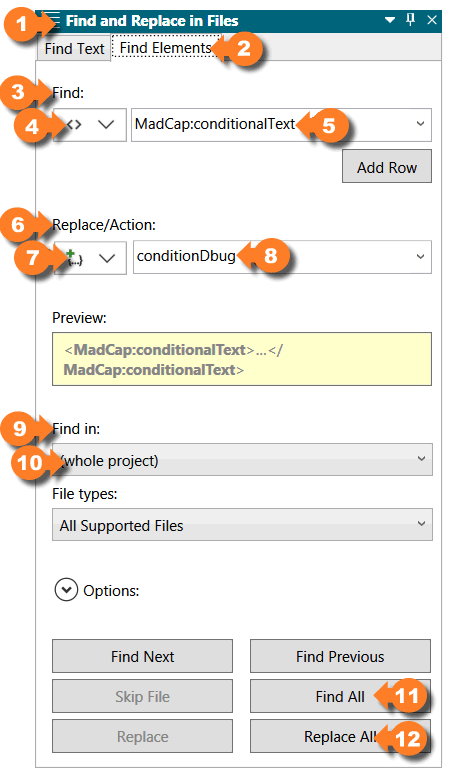
The following lines and image describe the process:
In the Find and Replace in Files 1 pane, access the Find Elements 2 tab
From the Find 3 dropdown box, select Tag 4 and then type or select MadCap:conditionalText 5 from the right-hand side dropdown box
Under the Replace/Action 6 section, select Add Class 7 and type conditionDbug 8
In the Find in 9 section, select (whole project) 10
Click Find All 11 to preview the expected resuls
Finally, click Replace All 12 to commit the changes
The Debug.css selectors related to conditional texts are these:
    .conditionDbug {
        background-color: lightcyan;
    }
        .conditionDbug::before {
            content: "{";
            color: coral;
        }

        .conditionDbug::after {
            content: "}";
            color: coral;
        }
Which will render conditional texts this way:
