Filenames
Including the underlying filenames for each topic can be very handy, especially in PDF outputs. It can serve multiple purposes, depending on the user’s needs.
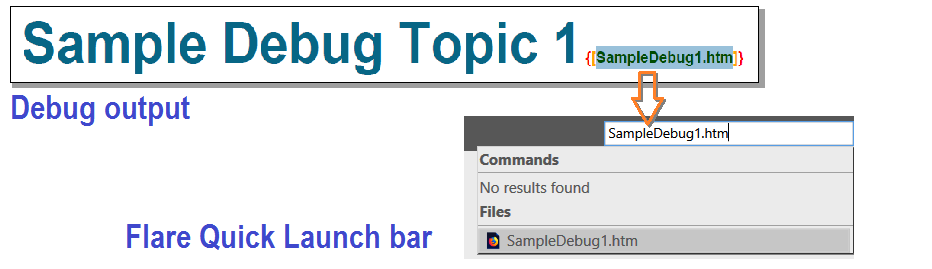
For example, a Flare user may need to quickly access a topic within the Flare project. By selecting the displayed filename in the Debug PDF, copying it to the Clipboard, and pasting it into Flare Quick Launch bar, the corresponding file can be opened immediately.
The following image is a visual representation of the process described:
Another possible scenario is when translators and proofreaders working in a Computer-Assisted Translation (CAT) tool need to check how a string looks like in the output: selecting the filename associated with the segment being translated in the CAT tool and searching for it in the debug output.
A simple approach to implement this debugging option is to include Flare built-in System.Sourcefile6 variable in all topic files.
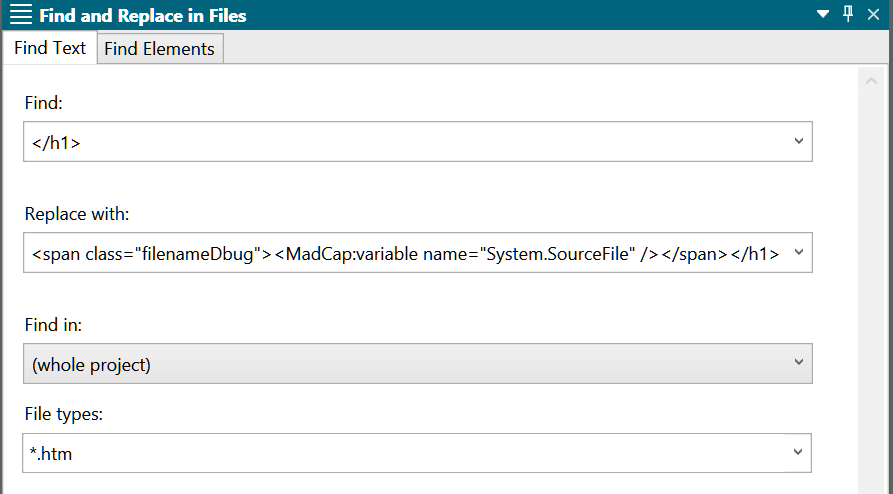
This can be achieved by running a normal find and replace in files procedure searching for closing header tags, for example <h1> tag, throughout the Flare project .htm/.html topic files, and replacing each instance with
Using Flare Find and Replace feature, the applicable find and replace in files procedure strings would be as follows:
Whereas </h1> closing tag should be replaced by the desired header tag: </h2>, </h3>, etc.
The Find in Files pane would look like this:
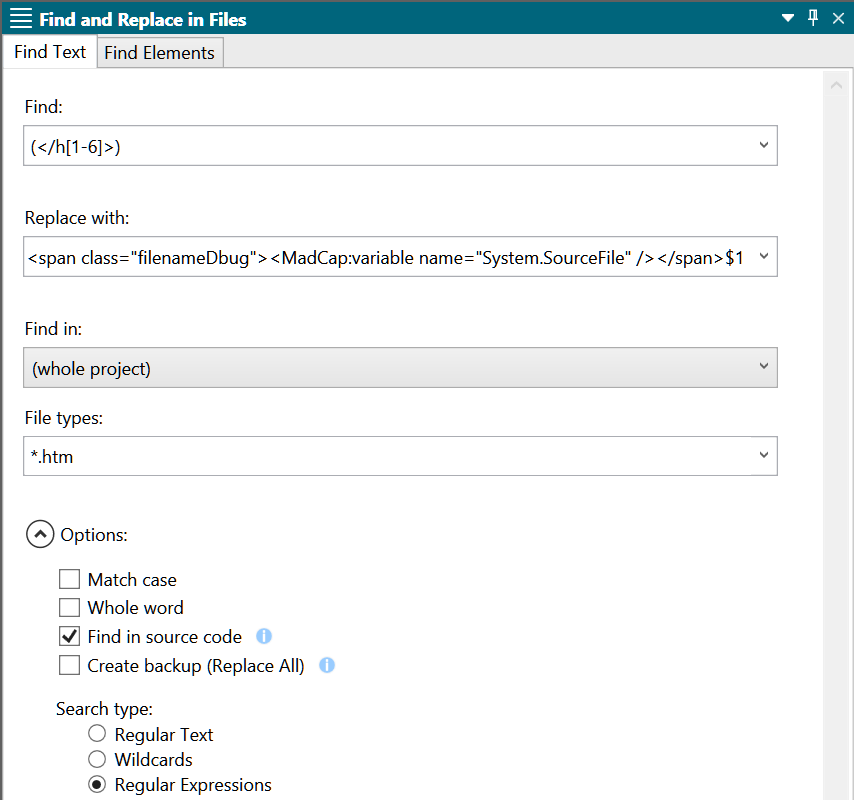
Alternatively, the following Regular Expression text replacement settings with Flare Find and Replace in Files will achieve the same results for several header closing tags:
This expression matches all header levels from <h1> through <h6>.
In this case, only the *.htm file types are targeted, since the System.Sourcefile variable returns the filename of the containing topic—not that of the snippet filename.
This image shows Flare Find and Replace in Files pane settings for such search
The resulting code would look like this for <h1>:
   <h1>
    Sample Debug Topic 1
   <span class="filenameDbug"><MadCap:variable name="System.SourceFile" /></span></h1>
Although some rendered styles are overriden by those applied to variables, filenameDbug class still supports related pseudo-classes. The relevant styles in Debug.css are these:
    .filenameDbug {
        font-size: 10pt;
        background-color: lightgoldenrodyellow;
    }

        .filenameDbug::before {
            content: " - ";
            color: red;
        }
The filename will be conveniently displayed next to the header in the output
