Linking Debug.css
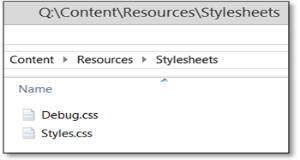
The debug styles described in these guidelines are found in Debug.css, which can be created from scratch or downloaded. This file can be saved in any available folder, although placing it alongside the existing project style sheets is the most practical choice. In a Flare project, the CSS files are typically found under \Content\Resources\Stylesheets.
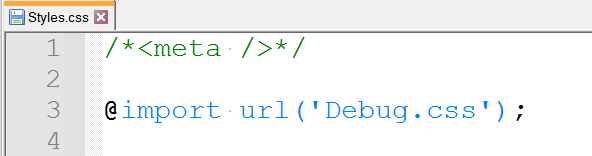
The debug styles are then implemented in the Flare project by linking Debug.css to the existing applicable project CSS file or files via @import rule1. The example below shows how to link Debug.css to Styles.css, through a text editor like Notepad++ or Flare Internal Text Editor, or through Flare Stylesheet Editor graphical user interface:
Text editor - Open the target CSS file with the preferred text editor and add the rule @import url('Debug.css'); towards the top of the file, Styles.css in this case
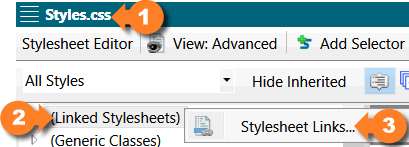
In Flare2 – Open the target CSS file, Styles.css 1 in the example, with the Stylesheet Editor, right-click on (Linked Stylesheets) 2 list item and select Stylesheet Links… 3 from the contextual menu
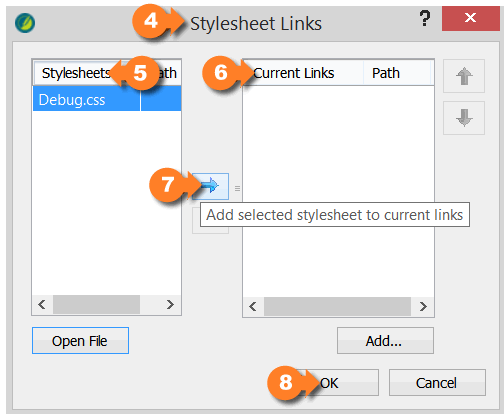
In the Stylesheet Links 4 dialog, select Debug.css from the available Stylesheets 5 list and add it to the Current Links 6 list by clicking on the right-pointing blue arrow 7 followed by OK 8
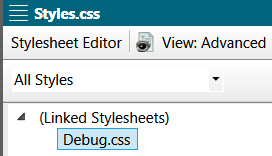
The newly linked CSS should now be listed under (Linked Stylesheets)