Snippets
MadCap Flare does not support snippet formatting through CSS in the same way it does for variables. To tackle these single-source authoring elements from a debugging viewpoint, the snippet tags need to be enclosed within a regular HTML tag with its corresponding CSS class.
The most convenient way to carry out the above enclosing is using Flare Find Elements5 feature. However, since this feature does not allow wrapping a tag and assign a class in a single operation, a little workaround is required. It consisting of availing of a temporary makeshift tag acting as a placeholder, such as <tmp> used below to illustrate the process.
This is the workaround in a nutshell:
<MadCap:snippetText…/>
<tmp><MadCap:snippetText…/></tmp>
<tmp class="snippetTxtDbug"><MadCap:snippetText…/></tmp>
<span class="snippetTxtDbug"><MadCap:snippetText…/></span>
Here is the detailed procedure to implement snippet text elements for debugging:
1 Implement the termporary tag
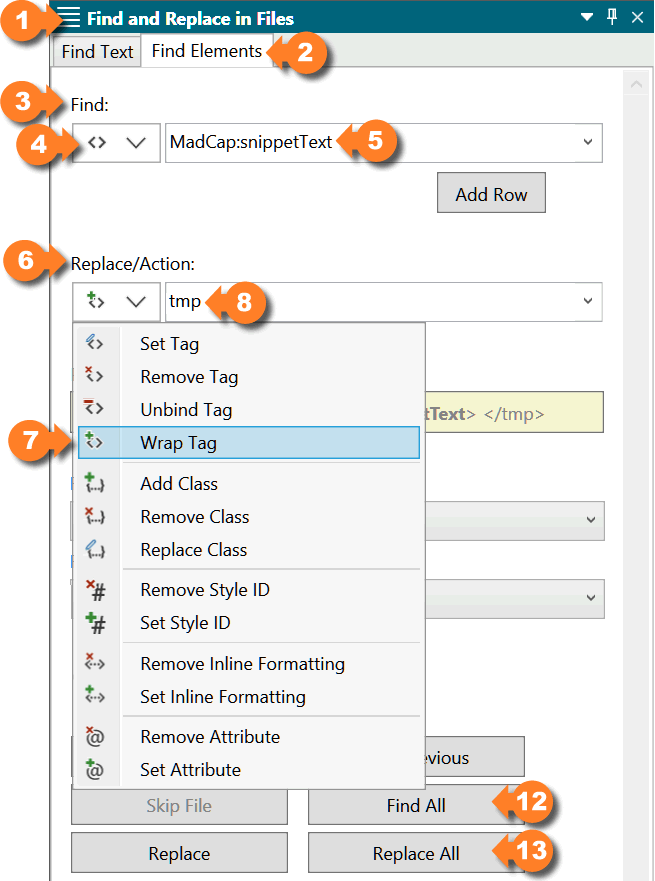
In the Find and Replace in Files 1 pane, access the Find Elements 2 tab.
Under Find 3, select Tag 4 and then type or select MadCap:snippetText 5
Under Replace/Action 6, select Wrap Tag 7 and enter the temporary tag name —tmp in this example 8
The Preview 9 box displays the expected changes:

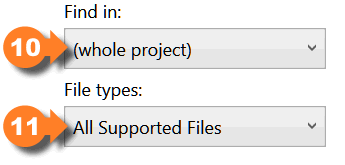
In Find in, select (whole project) 10 and in File types select All Supported Files 11
Click Find All 12 and take note of Total results value: This and the following two Find Elements operation should throw identical totals

Finally, click on Replace All 13 and accept the confirmation alert
2 Add the debugging class
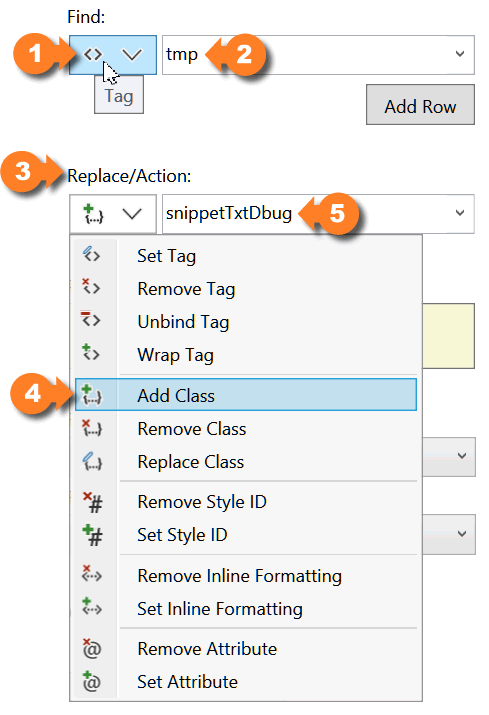
In the same Find Elements tab:
The Find option should remain as Tag 1 but the value should be changed to tmp 2
The Replace/Action 3 required is Add Class 4 and the value snippetTxtDbug 5
Click Find All and check for matching Total results
Click Replace All 6 and accept the confirmation alert to commit the changes

3 Implement the definitive tag
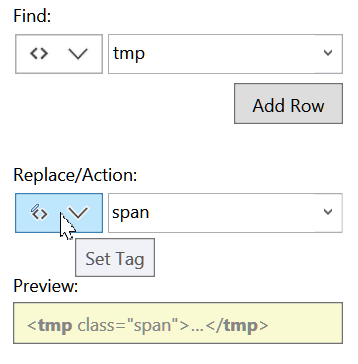
Replace the temporary tmp tag with the definite span tag by choosing the Set Tag option in the Replace/Action section and setting its value to span, as shown in the image.
Click Find All and check for matching Total results
Clicking Replace All and accepting the subsequent confirmation alert will implement the definite tag
The process to implement snippet block elements for debugging is very similar to snippet text, only replacing MadCap:snippetText with MadCap:snippetBlock. Here is the detailed process:
To implement the termporary tag:
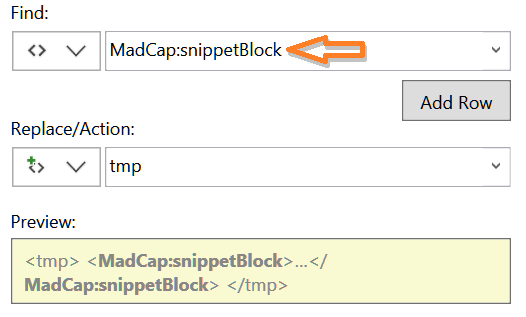
In the Find section, select Tag and enter or choose MadCap:snippetBlock in the dropdown list
In the Replace/Action section, select Wrap Tag and enter tmp
Click Find All and take note of Total results value
Click Replace All and accept the confirmation alert to commit the changes
To add the debugging class:
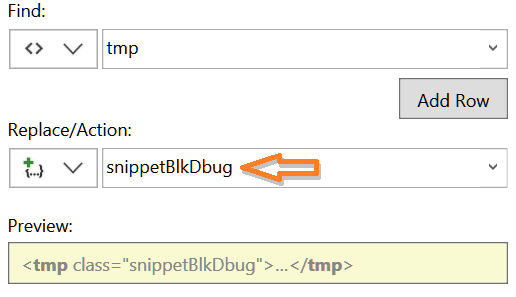
In the Find section, keep the Tag option and enter tmp as value
In the Replace/Action section, select Add Class and enter snippetBlkDbug
Click Find All and make sure Total results value matches the previous search
Click Replace All and accept the confirmation alert to commit the changes
To implement the definitive tag:
Replace the temporary tmp tag with the definite span tag by choosing the Set Tag option in the Replace/Action section and setting its value to span
Click Find All and check for matching Total results
Clicking Replace All and accepting the subsequent confirmation alert will implement the definite tag.
The related snippet class and pseudo-classes in Debug.css are these:
    .snippetTxtDbug {
            color: purple;
        }

            .snippetTxtDbug::before {
                content: "|";
                color: yellow;
            }

            .snippetTxtDbug::after {
                content: "]";
                color: yellow;
            }
While the snippet block class is as follows:
with no before or after pseudo-classes since snippet blocks are displayed as standalone elements.
The resulting output would look like this:
