Target Overriding Variables
Flare allows global variable values to be overridden for a specific output by editing the values of such variables in the target .fltar file generating that output4.
When reviewing outputs for potential defects, it is handy to easily tell at a glance between project‑wide variables and their target‑specific overrides, as this can significantly reduce the time required to identify the source of an issue.
In Flare localization workflows, overlooking these target variables can lead to untranslated strings appearing in the final output. Say, for example, a project-wide variable should be replaced in each generated output type by its associated overriding variable such as "Letter size", "A4 size", etc. Left untranslated, these target variable values will appear in the otherwise translated output.
A simple and immediate way to flag these instances of overridden variables is to manually add an eye-catching control character to the target variable using Flare Target Editor as shown below:

In this example the control character used is the % percentage sign. Prior to selecting a discretionary control character, it is recommended to check all existing variables, project-wide and target, and choose an appropriate eye-catching control character, like @, #, or $, to list a few.
The added character will be rendered alongside the variable debug closing character as explained in section Project-wide Variables above, that is %], making it conveniently searchable in the resulting outputs, which would look like this:
This is a [target%] [variable] as rendered in the output
However, implementing this debug feature this way has at least two drawbacks:
- It can be cumbersome in situations when a fair amount of targets and variables require updating
- The Target Editor displays all project-wide variables, including those that don’t require editing, making it tricky to tell from each other. In the example above, Variable1 and Variable2 definitions are global variables that should remain unchanged
A practical workaround is to edit the underlying .fltar file directly by performing a find and replace in files operation.
Unlike Flare Target Editor, a .fltar file includes just the overriding variables. In the above example, the original .fltar file <Variables> section would look like this:
<Variables> <Variable Name </Variables>
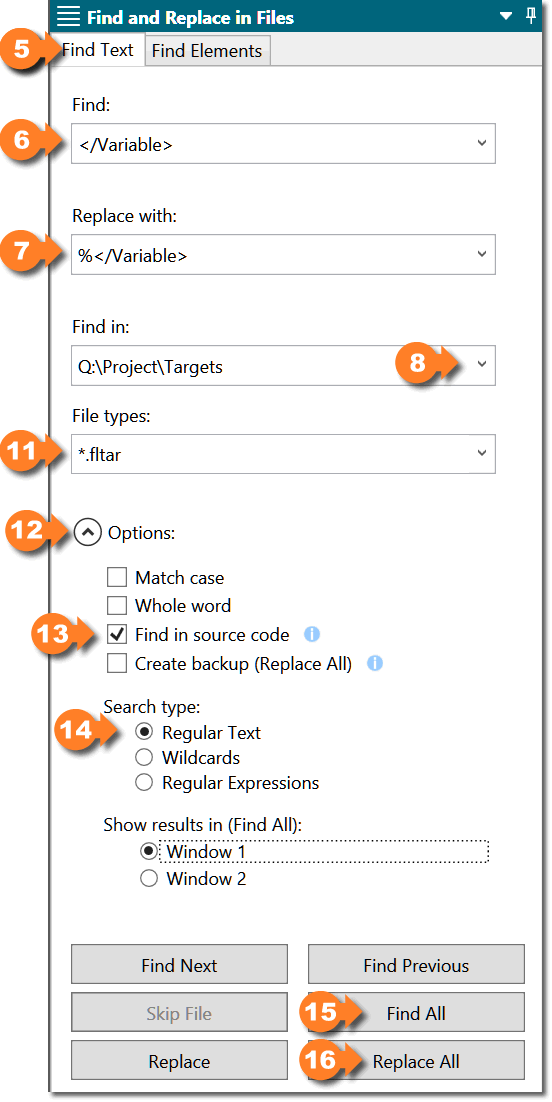
Therefore, the control trailing character can be implemented by running a find and replace in files procedure with the following settings, whereas % is the control character of choice:
Within Flare, the find and replace(6) process would be as follows:
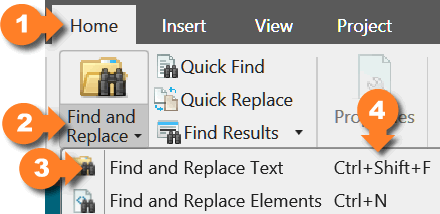
Access the Home 1 ribbon, click Find and Replace 2 and select Find and Replace Text 3 from the menu or use the Ctrl+Shift+F 4 keyboard shortcut
In the Find and Replace in Files pane, access the Find Text 5 tab and type </Variable> in the Find 6 box
In the Replace with 7 box, type %</Variable> (or the chosen control character instead of %
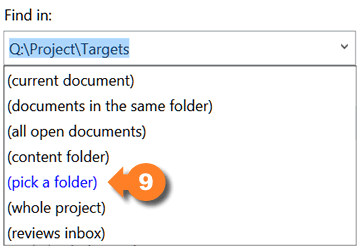
In the Find in 8 dropdown menu, select (pick a folder) 9
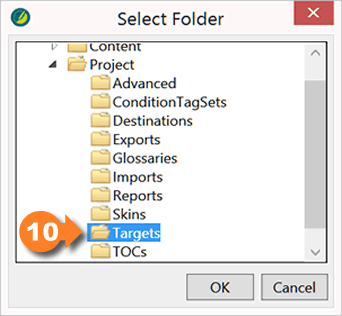
and choose the applicable folder –typically \Project\Targets– in the Select Folder 10 window
In File types 11 enter *.fltar to match Flare Target files only
If collapsed, expand the Options 12 section and select Find in source code 13 and Regular Text 14 options
Click Find All 15 to preview the expected results and, if everything is correct, click Replace All 16