Ordered Lists: Tackling Non-Latin Script Languages
Introduction
In HTML, content can be structured into lists, where each entry is preceded by a symbol, letter, or number known as marker, which identifies its sequence. These markers vary based on list types. The following table lists a few examples:
The bottom three examples belong to a specific category called ordered list, displaying markers in a sequential, logical pattern:
- First
- Second
- Third
- First
- Second
- Third
- First
- Second
- Third
This guideline describes a workaround to tackle how ordered list markers are rendered for non-Latin scripts in MadCap Flare outputs.
Alphabetical and numeral markers should match the content’s language script — In other words, Latin characters and numbers are not appropriate for languages that use other scripts, like Arabic, Cyrillic, Hebrew, or Japanese, for instance.
Currently, MadCap Flare provides limited support for non-Latin language outputs. This guideline describes a workaround to control how ordered list markers are rendered in such outputs.
Jump Start
Those already familiar with ordered list styles and CSS files, willing to cut to the chase and get started straightaway, should read the Disclaimer section and then fast-forward to the Implementation Cheat Sheet section.
Intended Audience
This guideline is intended for MadCap Flare users dealing with localized versions in non-Latin scripts, like Cyrillic, Arabic, Hebrew, etc.
While the techniques described are relatively basic, they do require a working knowledge of Cascading Style Sheet editing and familiarity with Flare Find Elements feature, albeit at a very entry level.
Authors, project managers (authoring and localization), translators, and proofreaders dealing with Flare projects, might find this content useful as it can help them make more precise requests to tech-savvy team member or helpful peers who can implement the described tweaks.
Initial Considerations
As in any software development process, better safe than sorry is the recommend principle to go by.
This solution has been tested and works reliably in most scenarios, but caution is paramount to safeguard the production Flare project by making backups or, if using a source control system, following the recommended practices.
Since the goal is to fix issues with ordered lists, it is highly recommended to plan ahead and identify relevant topics or snippets including ordered list tags to test and confirm the solution does the trick.
Ordered/Numbered Lists
Ordered lists are known as numbered lists in Flare1. The details to create numbered lists in Flare fall beyond the scope of this guideline but, since the solution modifies the underlying HTML code, it can be helpful to take a bird’s-eye view of the process.
By default, numbered lists are created in Flare using the Bullet List button in the Home ribbon, resulting in the example HTML code shown below:
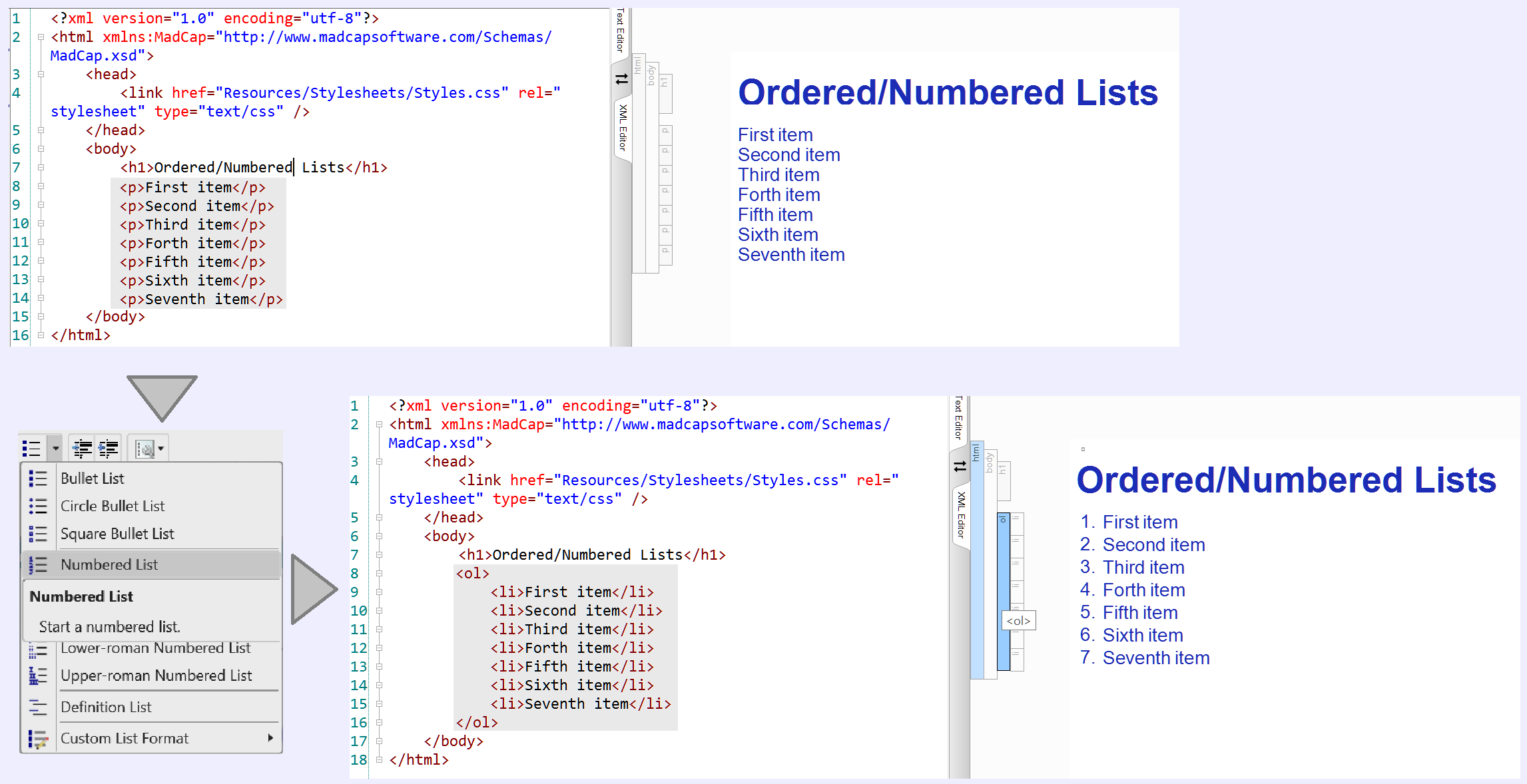
The Numbered List option used in this code results in a plain default <ol> ordered list tag which displays Arabic numeral markers.
Instead, if the Upper-alpha Numbered List option is selected from the menu, the displayed markers are upper-case Latin letters:
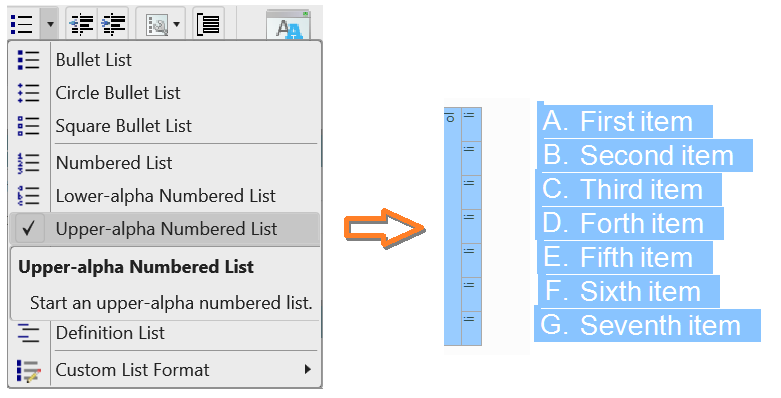
and the underlying HTML ordered list tag will include the following inline style:
<ol style=>
The Issue
For non-Latin alphabets, regular HTML order list style can be tweaked so markers are displayed in the appropriate script. For example
<ol style=>
will produce a lower-case Greek Cyrillic character ordered list:
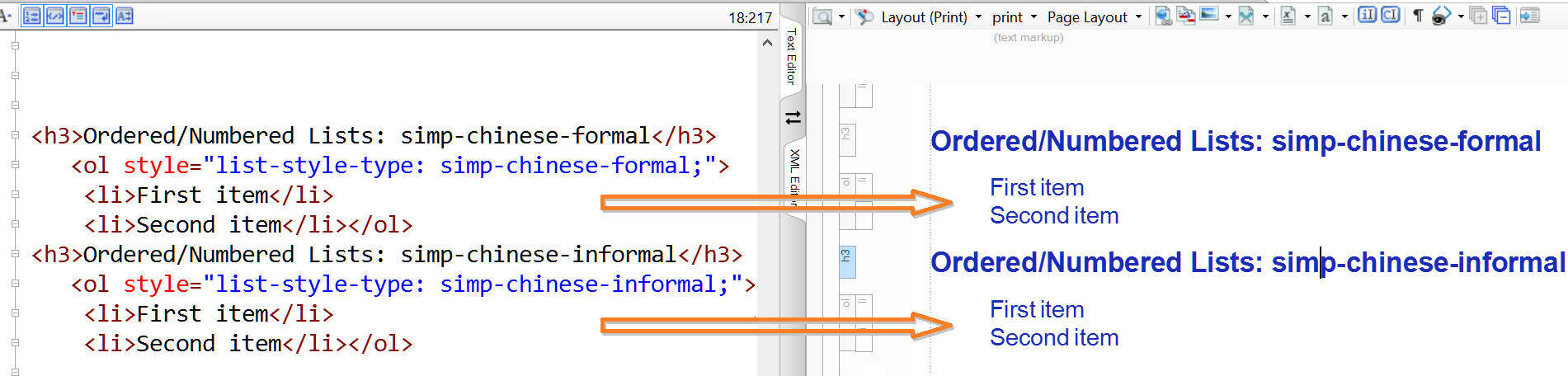
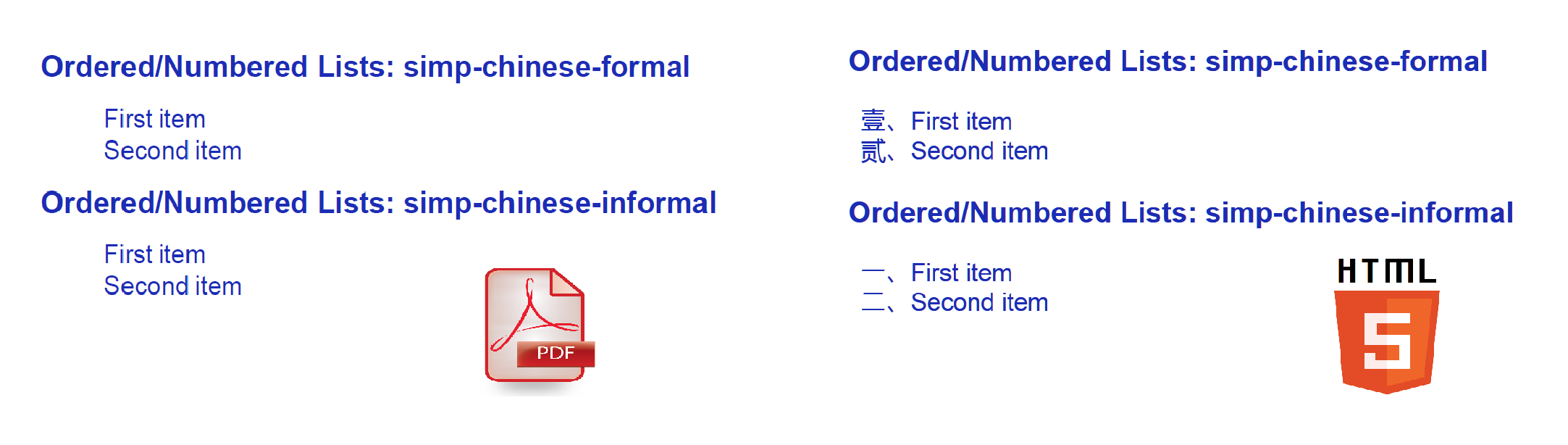
However, as of MadCap Flare 2025 version 21, support for many non-Latin list types is incomplete. For example, one such unsupported script is Simplified Chinese, either formal simp-chinese-formal or informal simp-chinese-informal): Even if the style values are changed in the Text Editor for the underlying HTML code, it results in missing markers in the generated PDF output
The resulting PDF and HTML outputs being:
Furthermore: Independently of Flare’s support, regular HTML itself supports a certain number of language scripts but not all of them, which means the marker characters for unsupported scripts won’t be properly rendered. Bulgarian Cyrillic, for example, is one such unsupported script.
In regular HTML, the workaround to tackle non-supported scripts involves the CSS Counter Styles @counter-style specification2, but Flare doesn’t support it either.
Therefore, if a Flare project including alphabetical or numbered ordered lists is to be localized into a non-Latin script language, chances are such list markers won’t be correct.
The Solution
Fortunately, CSS can come to the rescue. The solution proposed here leverages custom CSS styling to address missing or incorrect markers for non-Latin script lists.
This solution involves overriding the default rendering of <> markers and correctly display localized lists where native support falls short.
Implementation Cheat Sheet
Implementing this solution to non-Latin lists includes the following core steps:
- Assessing the underlying file design
- Adding a custom style to the applicable CSS file
- Implementing the above custom style in the relevant ordered list tags in topic and snippet files
The details are described in the following sections.
Assessing the Underlying Files Design
Before implementing the solution, it’s important to identify the types of ordered lists currently used in the Flare project—whether numeric, lowercase alpha, or uppercase alpha.
Likewise, the assessment should also identify how many items appear in the project’s longest ordered list, so the CSS file can be updated with the appropriate number of li marker overrides to accommodate them all.
Perhaps the most convenient way to proceed is performing a Flare Find Elements search across all translatable topic and snippet files.
Here are the steps:
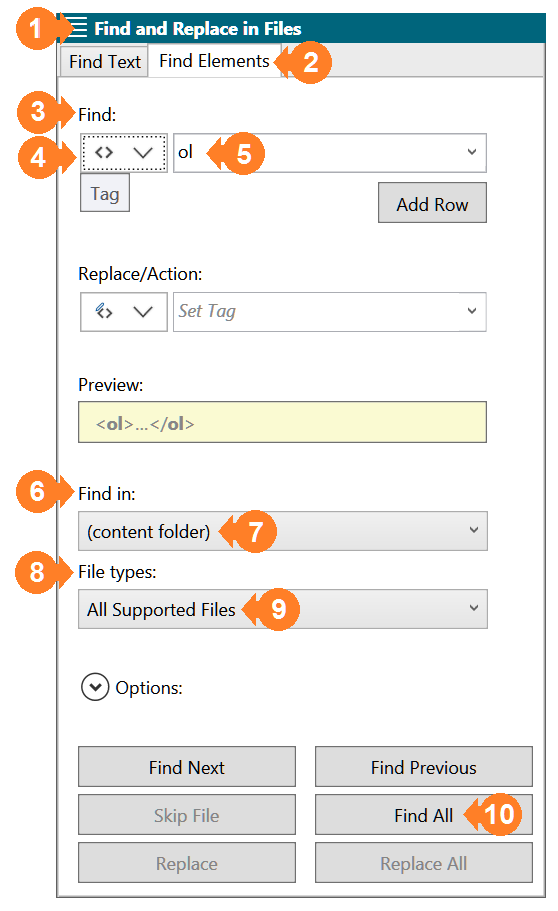
- Open the Find and Replace in Files ❶ pane and access the Find Elements ❷ tab
- In the Find ❸ section, select Tag ❹ from the left dropdown and then type or select ol ❺ in the right dropdown
- In the Find in ❻ section, select (content folder) ❼
- In the File Types ❽ section, select All Supported Files ❾
- Run the search by clicking Find All ❿
The resulting Find Elements tab should look like this:
The search results will be displayed in the Find Results pane, as shown in the following image:
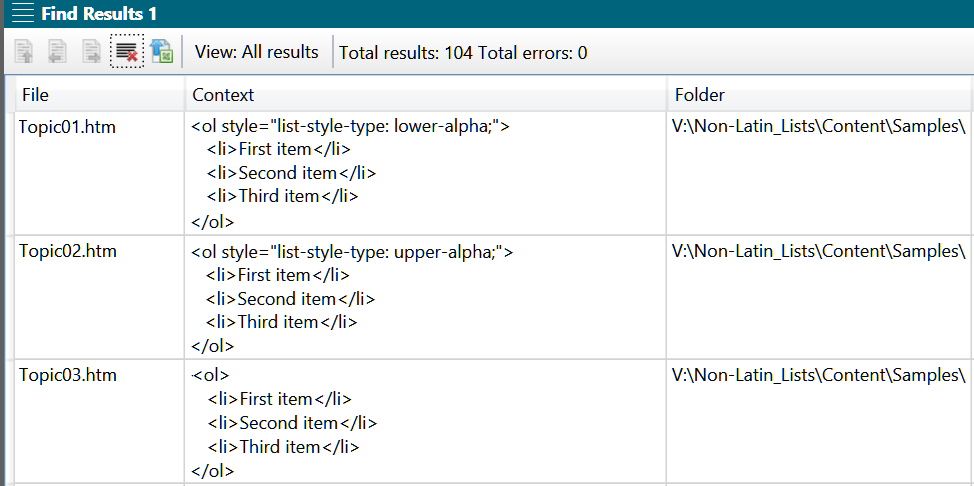
Depending on the target language script, the solution should be implemented for:
- Numeric lists found as plain <ol> tags
- Alphabet lists with lower-alpha and upper-alpha values for list-style-type attributes
These findings will point at which lists need to be edited.
Editing the CSS
The solution here described requires editing the applicable CSS by adding a custom ol selector class with a descriptive, discretionary name. This editing can be done using any text or code editor, like Flare’s internal Text Editor3, Notepad++4, or Microsoft Visual Studio Code5.
The general syntax for our new class is as follows:
ol.[discretional_class_name] { list-style-image: ; }
For example, let’s say the required script is lowercase Bulgarian which we decide to name lowBG. The new ol selector will look as follows:
ol.lowBG { list-style-image: ; }
These lines disable the default list markers for any <ol> ordered list tags of the lowBG class.
The solution then requires adding styles for the subordinated li list items using the following syntax6:
ol.[class_name] li:nth-child([number])::marker { content: ; }
For the example at hand, let’s say the longest ordered list contains 5 items, so we need to add just as many subordinated li styles or children, and their required CSS character code points7:
The resulting subordinated li CSS styles are shown below:
ol.lowBG li:nth-child(1)::marker { content: ; } ol.lowBG li:nth-child(2)::marker { content: ; } ol.lowBG li:nth-child(3)::marker { content: ; } ol.lowBG li:nth-child(4)::marker { content: ; } ol.lowBG li:nth-child(5)::marker { content: ; }
Here is each of the above elements explained:
Here is how the above styles work:
The ::marker pseudo-elements render each character included in content for the associated li:nth-child(number) pseudo-element. For example, the marker associated with nth-child(2) is \431. rendered as б.
In these examples, the content values are followed by a dot and a space to mimic the regular Latin script ordered lists rendering.
Implementation in Topics and Snippets
As described earlier, the standard way to implement ordered lists in Flare is through inline styling applied to <ol> tags. Although there are other potential designs, for the sake of simplicity this guideline focuses on how to adapt such standard design for non-Latin scripts.
Once the ordered list CSS class and related list items have been created, the solution requires updating the alpha and numeral ordered lists found in topics and snippets throughout the Flare project.
Since <li> list item styles are tackled in the CSS file, the solution only requires tweaking alpha and numeral <ol> ordered list tags. In other words, <li> tags remain unchanged, greatly simplifying the implementation process.
Basically, tweaking the required <ol> tags consist of replacing the existing style with the custom CSS ol class so, in our example, the original tag
<ol style="list-style-type: lower-alpha;">
needs to be changed to
<ol class="lowBG">
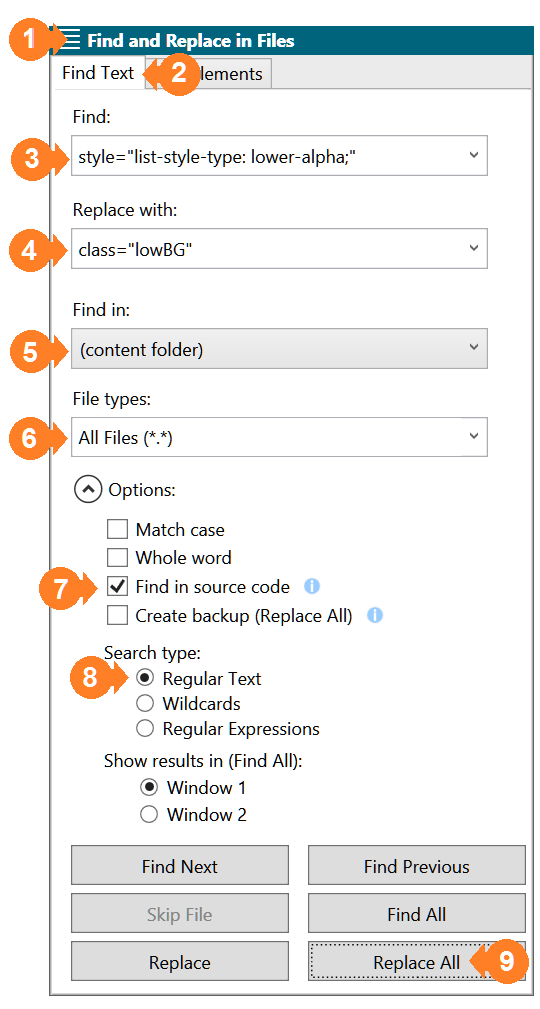
Any text editor with find-and-replace across files capabilities can be used to that avail. For this example, the process will be described using Flare’s Find and Replace in Files. Here is how it goes:
- In the Find and Replace in Files ❶ pane, access the Find Text ❷ tab
- In the Find dropdown box, type or enter the search string, for example style=”list-style-type: lower-alpha;” ❸
- In the Replace with dropdown box, type or enter the replace string, for example class=”lowBG” ❹
- In the Find in section, select (content folder) ❺
- In the File types dropdown box, select All Files (*.*) ❻
- In the Options section tick Find in source code ❼
- In the Search type section tick Regular Text ❽
- Run the find and replace search by clicking Replace All ❾
The resulting Find and Replace in Files pane should look like this:
Text Translation Implications
This solution changes visible content. Therefore, it is essential to check the translated texts for references to list item entries changes resulting from implementing the solution.
Examples of references that may need adjustment include:
- Refer to option B…
- Repeat steps 3 through 5…
- Skip to paragraph 4 if…
Such instances should be reviewed and updated to match the new localized markers.
Consistency between list item markers and in-text references is key to maintaining clarity and avoiding confusion in translated outputs.
The Solution within the Localization Workflow
Ideally, this solution should be implemented prior to the translation phase, that is, before the translatable files are prepared and sent for translation. However, such approach might delay the overall project turnaround, especially if several target languages require its implementation.
In such cases, an alternative approach is to assess and decide on the convenience of the solution and its implementation early in the localization process. If the solution is deemed relevant, the translation teams should be instructed as discussed in the above Text Translation Implications section and the solution should be implemented once the translation phase is completed.
Downloads
A zipped sample MadCap Flare project including the solution described in this guideline is available for download.
This sample project includes the necessary underlying files to generate PDF and HTML outputs listing all standard and non-standard list types, useful to find out whether a particular script is supported.
Disclaimer
The information and guidelines presented in this document are provided for general information purposes only. While every effort has been made to ensure they serve the purpose, results may vary depending on specific project or code designs. The author assumes no liability or responsibility of any kind over any erroneous, bogus, or unexpected results. It remains the user's responsibility to properly interpret, adapt, and apply these guidelines to suit each particular case.
References
1 – MadCap Flare Creating Numbered and Bulleted Lists and Tutorial
2 – World Wide Web Consortium (W3C) Counter Styles
3 – MadCap Flare Editing Styles in the Internal Text Editor
5 – Microsoft Visual Studio Code
6 – Mozilla Developer Network Marker and W3C Editor’s Draft Marker pseudo-element
7 – Github Counter styles converter